

Unlocking the full potential of your MikroTik routers requires seamless access, and that’s where the Winbox login comes into play. Whether you’re a network administrator aiming for efficient device management or a tech enthusiast exploring network configurations, understanding Winbox login is essential. This comprehensive guide covers every aspect—from setup to troubleshooting—ensuring you can confidently use Winbox to streamline your networking tasks.
The key to effective MikroTik management lies in mastering Winbox login, a powerful and user-friendly tool that offers direct access to your routers’ settings, configurations, and controls. In this article, we’ll explore how to optimize your login experience for maximum security and efficiency.
Step-by-Step Guide to Winbox Login – Unlocking Router Access with Ease
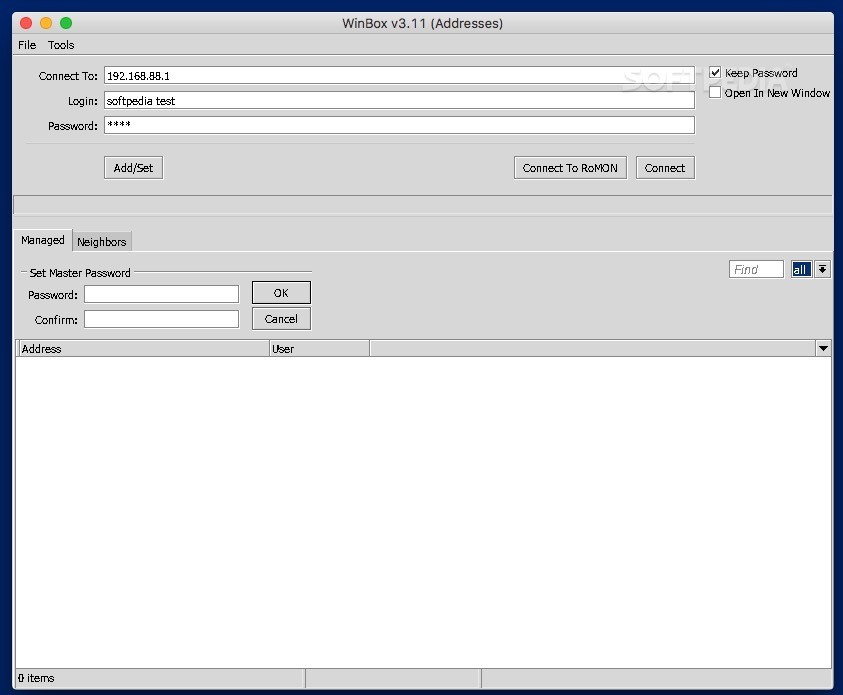
Embarking on your journey with Winbox login begins with understanding the initial setup process. This section provides a meticulous walkthrough to ensure a smooth and secure connection to your MikroTik device. From preparing your network environment to executing the login, each step is tailored for clarity and confidence.
Preparing Your Network Environment
Before attempting a Winbox login, it’s imperative to ensure your network setup supports a successful connection. This involves hardware compatibility checks, IP configuration standards, and ensuring your device has access rights.
- Hardware Compatibility: Confirm that your computer meets system requirements and has the Winbox utility installed. Winbox is available for Windows, with recent versions accessible via MikroTik’s official site.
- Network Configuration: Your PC should be connected to the same network segment as the MikroTik device or have routing configurations that permit access.
- Firewall and Security Settings: Disable or modify firewall settings that might block Winbox traffic. The standard Winbox ports (8291 by default) must be open for proper operation.
- Password and User Accounts: Ensure you have the correct credentials for the MikroTik device. Default credentials, if unchanged, are typically ‘admin’ with no password, but this is insecure and should be updated.
Proper preparation guarantees a hassle-free Winbox login and sets the stage for secure management.
Executing the Winbox Login Process
Once your environment is ready, executing the login involves several critical steps to connect securely and reliably. This process emphasizes best practices and potential troubleshooting points.
- Launching Winbox Tool: Open the Winbox utility on your PC. It’s a small executable file that does not require installation, making it portable and convenient.
- Discovering the Router: Use the “Neighbors” tab to automatically scan for MikroTik devices on the network. If your router isn’t listed, manually enter its IP address.
- Connecting to the Router: Select your device or input its IP address. Enter your administrator username and password. Use the default port (8291) unless customized.
- Session Management: Choose “Connect” to initiate the session. If successful, a graphical interface will open, granting full access to router configurations.
- Troubleshooting: If connection fails, verify network connectivity, check port availability, and confirm credentials. Restarting Winbox and checking firewall rules can resolve common issues.
This methodical approach ensures a reliable & secure Winbox login, optimized for both new and experienced administrators.
Enhancing Security During Winbox Login
Security should always be a priority during your Winbox login attempts. Given that MikroTik devices are network gateways, vulnerabilities could threaten your entire infrastructure.
- Changing Default Passwords: Always change the default credentials immediately after first login. Use strong, complex passwords to prevent unauthorized access.
- Enabling Firewall Rules: Configure firewall policies that restrict Winbox access to trusted IP addresses or subnets. Use the “/ip firewall filter” to define precise rules.
- Securing Winbox Port: Change the default port from 8291 to a non-standard port, reducing exposure to automated scans.
- Using VPNs: For remote access, establish a VPN connection before logging into the router. This encrypts your Winbox session and shields configuration data.
- Enabling HTTPS and SNMP Security: For management through other tools, ensure secure protocols are used to mitigate risks.
Implementing these best practices during your Winbox login process safeguards your network and maintains operational integrity.
Troubleshooting Common Winbox Login Issues – Solutions for Smooth Access
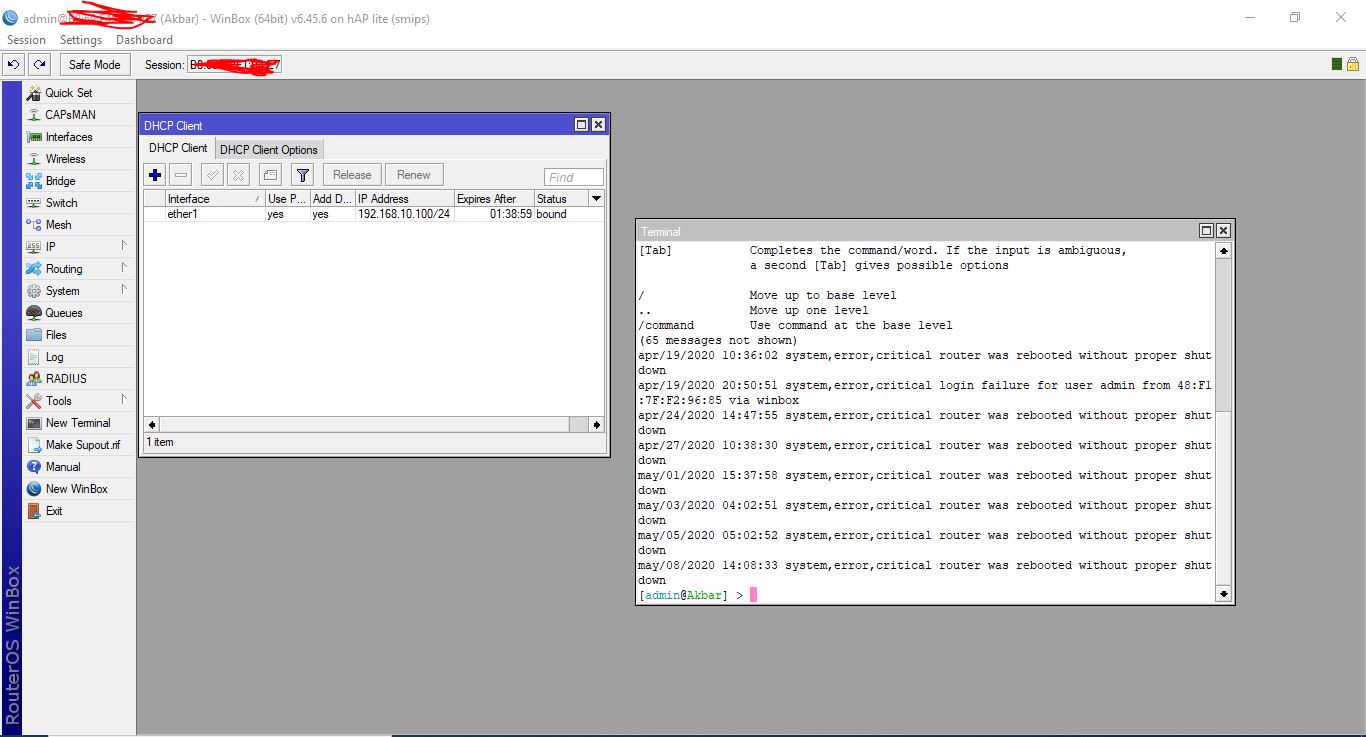
Even with meticulous preparation, problems can arise during Winbox login. Understanding these issues and their solutions can save you time and prevent frustration.
Network Connectivity Problems
Network issues are often the root cause of failed Winbox logins. Verify physical connections, IP addresses, and subnet configurations. Use ping tests and network scanning tools to confirm devices are reachable.
- Solution: Restart network devices, verify IP addresses, and ensure that no VLAN or routing policies block access to the MikroTik router. Adjust firewall settings accordingly.
Firewall Blocks and Port Restrictions
A common oversight is firewall misconfiguration, blocking the default Winbox port or ICMP requests necessary for device discovery.
- Solution: Check your local and router firewall rules. Open port 8291 or your custom port. Temporarily disable firewalls for testing, then re-enable with proper rules.
Incorrect Credentials or User Privileges
Incorrect username or password inputs are straightforward but critical errors. Additionally, user privileges might restrict access.
- Solution: Reset passwords if forgotten. Ensure your user account has admin rights. Use the “Reset configuration” option if necessary, but take care to preserve critical settings.
Software Compatibility or App Errors
Outdated Winbox versions or corrupted files can cause connection issues.
- Solution: Download the latest version of Winbox directly from MikroTik’s official site. Clear previous cached configurations and restart your system.
Tips for a Fail-proof Winbox Login Experience
- Always keep backups of your configurations before making major changes.
- Use secure networks when managing MikroTik devices remotely.
- Regularly update firmware and software to leverage security patches.
- Document default credentials and custom settings for quick recovery if needed.
Applying these troubleshooting steps ensures that your Winbox login process remains reliable and efficient.
How to Maximize Your Winbox Login Workflow – Expert Tips and Best Practices

Efficiency in managing MikroTik routers truly depends on how well you optimize your Winbox login process. This section offers expert advice to streamline access, enhance security, and facilitate ongoing device management.
Automating Login and Session Management
Automation reduces manual effort and minimizes errors during frequent logins.
- Using Scripts: Save login credentials securely within scripts to automate sessions using batch processing tools, but ensure they are protected.
- Session Saving: Use session options that remember your previous settings or establish persistent connections for ongoing management.
Using Winbox in PIN and Multi-Device Environments
Multiple devices often require centralized management.
- Managing Multiple Routers: Maintain an organized list within Winbox or use scripting to access multiple devices efficiently.
- Group Management: Use scripts or management tools that integrate with Winbox for large-scale network oversight.
Backup and Recovery via Winbox
Consistent backups safeguard your configurations against failures.
- Automated Backups: Schedule regular backups through Winbox or MikroTik scripting.
- Restoring Settings: Use exported configurations after Winbox login to quickly recover or clone setups.
Comparing Winbox with Other Management Tools
While Winbox is specialized, understanding alternatives broadens your management options.
| Management Tool | Pros | Cons |
|---|---|---|
| Winbox | User-friendly GUI, dedicated MikroTik features | Windows-only, local network dependency |
| WebFig | Accessible via browsers, cross-platform | Slightly slower, feature limitations |
| MikroTik API | Automation, integration | Requires programming knowledge |
Choosing the appropriate tool for your needs enhances efficiency and security during Winbox login sessions.
Final Advice for Power Users
- Always update to the latest Winbox version.
- Use strong passwords and multi-factor authentication when possible.
- Document your network topology and login procedures.
- Regularly audit device access logs for suspicious activity.
Following these expert tips ensures your Winbox login remains a safe, efficient, and powerful part of your network management arsenal.
FAQs about Winbox Login – Your Questions Answered
What is Winbox login, and why is it important?
Winbox login refers to accessing MikroTik routers via the Winbox utility, a powerful graphical management tool. It’s vital for configuring, monitoring, and maintaining network devices efficiently, offering a direct and secure interface.
How do I troubleshoot a failed Winbox login?
Start by verifying network connectivity, ensuring the correct IP address and port are used, confirming your credentials, and checking firewall settings. Updating Winbox and resetting the router might be necessary if issues persist.
Can I use Winbox login remotely over the internet?
Yes, but it requires secure configurations such as VPN connections or secure port forwarding. Direct internet access without proper security measures can expose your router to vulnerabilities.
Is Winbox login secure for managing sensitive networks?
When configured correctly—using strong passwords, secured ports, and VPNs—Winbox login can be highly secure. It’s crucial to follow best practices for network security to prevent unauthorized access.
What are the alternatives to Winbox login?
Alternatives include WebFig (web-based interface), MikroTik API (programmatic access), and SSH/telnet sessions for command-line management. Each serves different needs and levels of complexity.
Conclusion
Mastering Winbox login is fundamental to leveraging the full capabilities of MikroTik routers. From initial setup and security hardening to troubleshooting and automation, understanding the nuances of Winbox access ensures efficient, secure, and reliable network management. By following best practices, keeping software updated, and applying expert tips, network administrators and enthusiasts can confidently harness Winbox’s power to optimize their networking environment, securing seamless access and control over their devices at all times.